How to Create a Full Website Backup: A Complete Guide for Website Owners

Backing up your website is one of the smartest moves you can make to protect your data, especially in today’s digital landscape where server crashes, malware, or accidental deletions can happen without warning. Whether you run a blog, business site, or eCommerce platform in Ghana or elsewhere, knowing how to create a full website backup ensures that you can recover quickly and avoid costly downtime.
In this guide, we’ll walk you through the step-by-step process of creating a complete backup of your website, using simple tools found in most web hosting control panels.
Types of Website backups
There are generally three types of website backups:
- Full Backup: A full backup is a complete copy of your website’s files, databases, and configurations. It includes all the website’s data and content, allowing you to restore your website to its previous state quickly.
- Incremental Backup: An incremental backup is a backup that only saves the changes made to the website since the last backup. It saves time and space as it only copies the new or modified files or data. However, restoring a website from incremental backups may take longer than from a full backup.
- Differential Backup: A differential backup is similar to an incremental backup in that it only saves the changes made since the last backup. However, it copies all the changes made since the last full backup, not just the changes since the last differential backup. This means that differential backups can be larger than incremental backups, but restoring the website can be faster.
How to create a full website backup
There are different ways and methods you can use to create a backup of your website from your hosting control panel and we’ll be looking at all the options and methods of creating a website backup.
1. Creating a local backup: Full backup
To do this first you need to login to your web hosting control panel (cPanel, DirectAdmin, e.t.c) in this tutorial we’ll be using cPanel, but the steps for DirectAdmin are the same.
Login to cPanel and scroll down to the files section, Click on Backup Wizard.
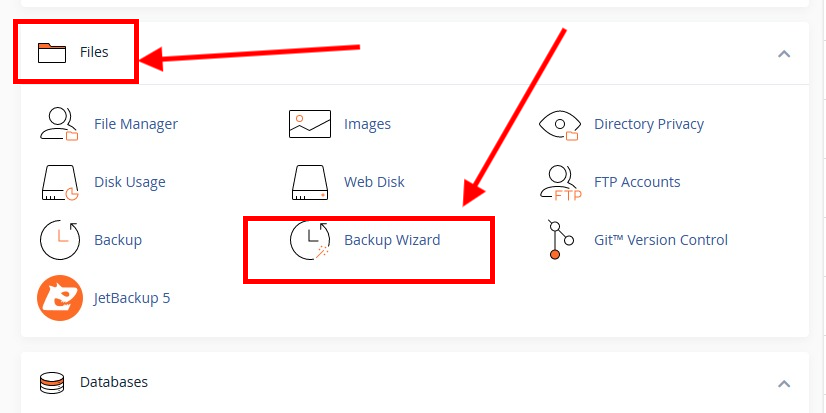
Next You’ll be redirected to the backup page, here you’ll be presented with two options.

Backup; This feature allows you to download a compressed copy of all or part of your website. The system will include the following items in the backup file:
- The home directory.
- MySQL® databases.
- Email forwarder configurations.
- Email filter configurations.
Restore; This feature allows you to upload an existing partial backup file in order to restore parts of your website. The system will restore the following items if they exist in the backup file:
- The home directory.
- MySQL® databases.
- Email forwarder configurations.
- Email filter configurations.
Click on Backup, and it will take you to the next step “Full or Partial Backup“.
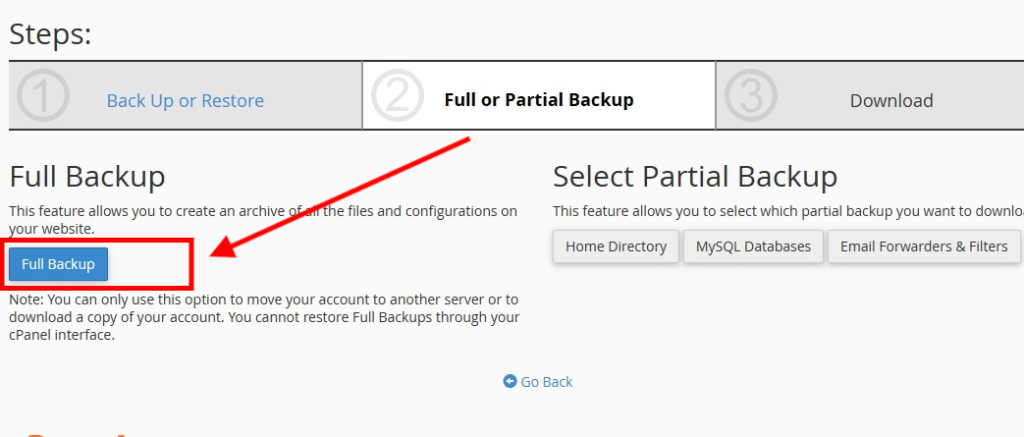
Click on full backup and it will take you to the finale step
Note; according to cPanel “A full backup will create an archive of all the files and configurations on your website. You can only use this to move your account to another server, or to keep a local copy of your files. You cannot restore full backups through your cPanel interface”.
For the final step you’ll be given an option to choose the backup destination and insert your email address so that you’ll be notified when the backup is complete.

For the destination you can save it to your home directory or send to remote location using ftp, for this we’ll be saving the backup to our file manager in cPanel so, just scroll down and click on generate and the backup process with start.
Once you click on generate backup you should receive a success message that says “Full Backup in Progress … Once the full backup of your account has been completed, you will receive an email at the address you specified”.
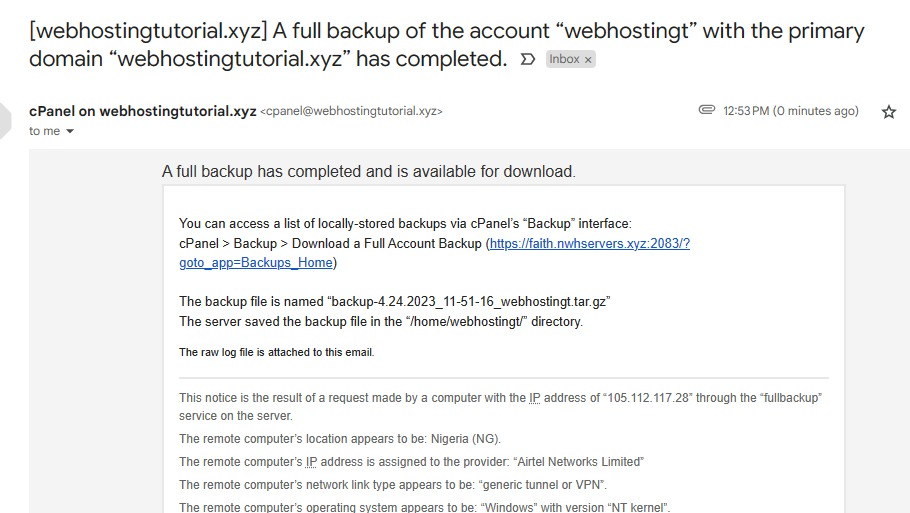
Once the backup is complete, you’ll receive an email notification saying your backup is complete.
How to download a backup of your website
Now that we’ve generated a backup of our hosting account it’s time to download it and save it to our local device, computer smart phone etc.
To do that; first login to cPanel and go to the files section and click on backup.

Now click on “download a full account backup” and it will take you to a page with the list of all your generated backups.

Click on the most recent one and it will begin downloading the backup file in zip format.

Second option; For HOSTAFRICA customers only
At HOSTAFRICA we provide you with offsite daily backup which is stored in a remote server.
You can also download a copy of it using the Jetbackup5, to do this;
First login to cPanel and go to the files section of your cPanel area now click on Jetbackup5

You’ll be redirected to the Jetbackup5 Dashboard, once you’re there go to the “Restore & Download” section and from here you can restore or download any backup, full account backup, database backup etc.
On this post i’ll be using the full account option to download a copy of the backup.

Now select a backup from any date which you want to download scroll down and click on download
Next a pop-up will appear and you’ll be presented with a summary of all the items you’re about to download. Just review it scroll down and click on download selected items, I suggest leaving everything as it is.
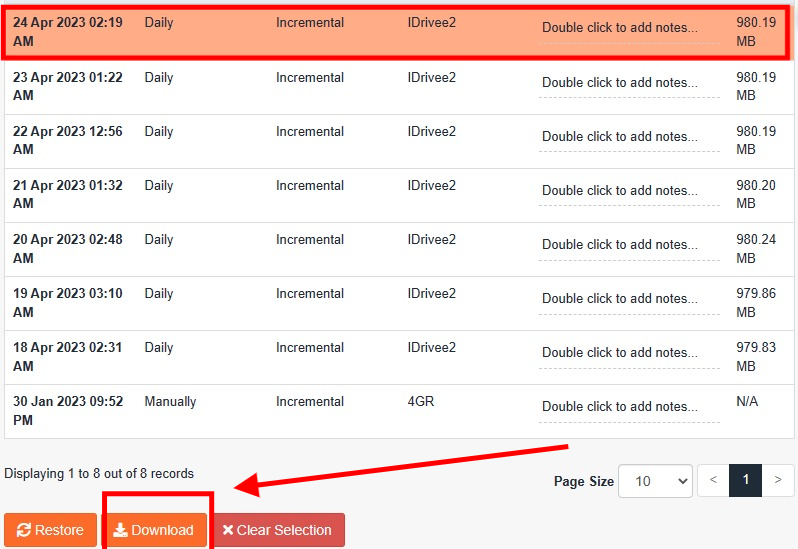

Next it will start genrating a zip file of your backup which you can download, once its done you can find a copy of the backup in your jetbackup5 dashboard from the cPanel under downloads section.
So that’s how you create a backup of your website .

Ashwin S.
The Author
Ashwin is a content specialist at HOSTAFRICA, where he's been crafting clear, authoritative copy since 2021. With a background in digital marketing and a passion for impactful storytelling, he turns complex ideas into trustworthy, engaging content. Ashwin writing helps our audience navigate web hosting and cloud solutions with confidence.
Related posts



Need Assistance?
Our local Ghanaian support team
is ready to help.